Services
Services are the offerings you sell. Each service can have a card (shown by the Service Section block) and a full detail page. Manage them in Services → Services.
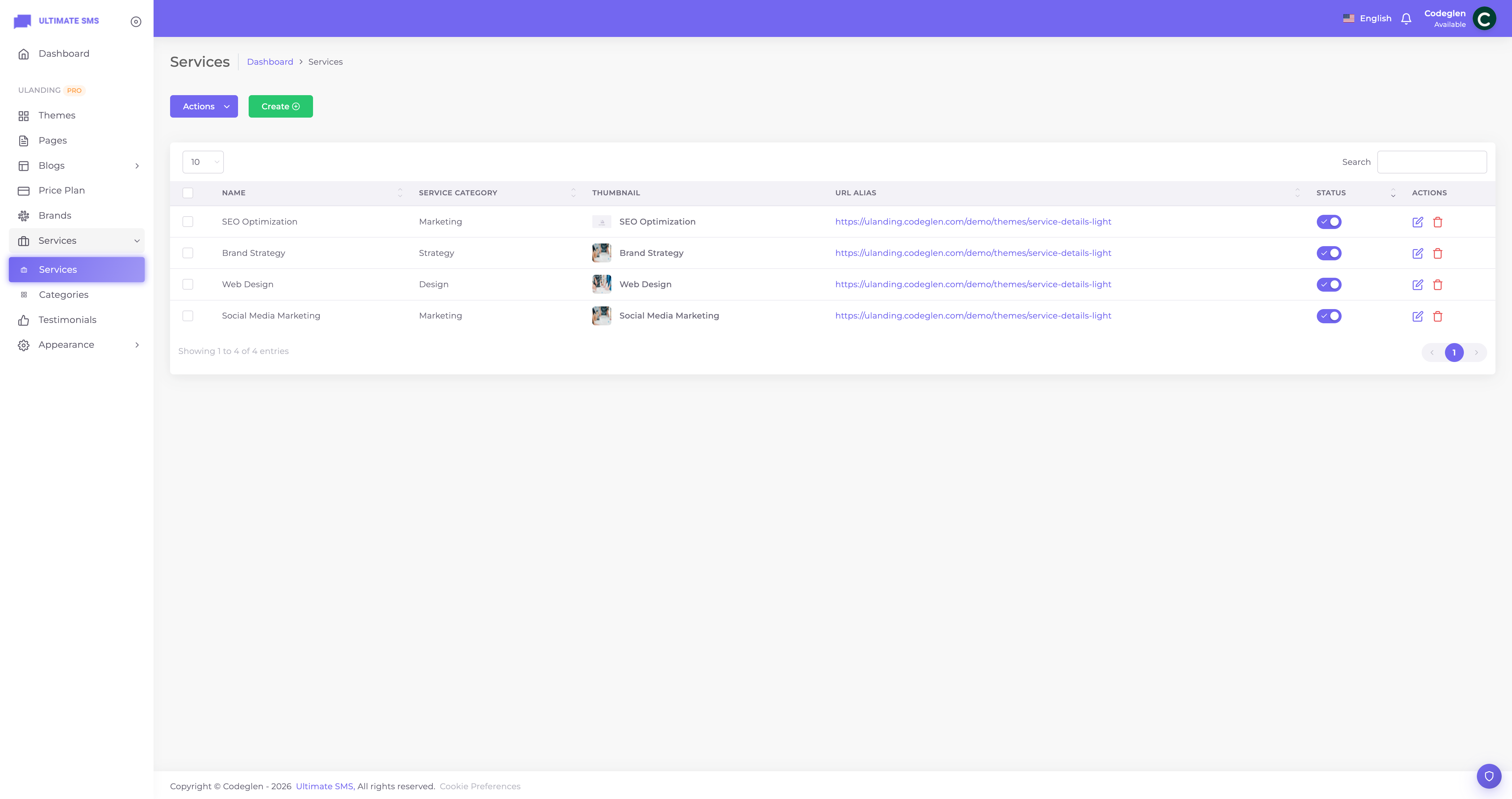
Screenshot: Services list screen
This page covers creating and editing services. For how detail pages render, see Service Detail Pages.
The Services list
Shows all services with name, category, status, and a status toggle. Includes search and bulk actions (activate, deactivate, delete).
Creating a service
Click Create / Add New. The form is organized into tabs.
General tab
| Field | What it does |
|---|---|
| Name | The service name. |
| Slug | The URL part for the detail page (auto from name). |
| Category | The service category (manage in Services → Categories). |
| Short description | A brief summary shown on cards. |
| Icon type | Icon class (Font Awesome) or SVG. |
| Icon | The icon class or SVG code. |
| URL | An optional external link (used when the detail page is off). |
| Card color | The accent color of the card. |
| Tags | Comma‑separated keywords. |
| Thumbnail | The card/listing image. |
| Sort order | Position in lists. |
| Published | Show or hide the service. |
Content tab (for the detail page)
| Field | What it does |
|---|---|
| Detail short description | A summary at the top of the detail page. |
| Service overview | The main introduction (rich text). |
| Main content | The full body content. |
| Key benefits | A benefits section (rich text). |
| Features content | A features section. |
| Process content | A "how we do it" section. |
Media tab
| Field | What it does |
|---|---|
| Hero banner | The big image at the top of the detail page. |
| Banner overlay color | A tint over the banner. |
| Banner height | Default / 300 / 400 / 500 / 600 px. |
| Featured image | A secondary image. |
| Gallery images | Multiple images for a gallery. |
| Video URL | A video for the detail page. |
SEO tab
| Field | What it does |
|---|---|
| Meta title | Title for Google/browser tab. |
| Meta description | Search summary. |
| Meta keywords | Optional keywords. |
| OG image | Social share image. |
| Canonical URL | The official URL (advanced). |
Layout tab
| Field | What it does |
|---|---|
| Detail layout | Pick the design of the detail page: Classic / Agency / SaaS / Consulting / Minimal. |
Settings tab (detail page toggles)
| Toggle | What it does |
|---|---|
| Enable detail page | Turn the dedicated detail page on. Required for the service to have its own URL. |
| Enable breadcrumb | Show a breadcrumb trail. |
| Enable related services | Show related services at the bottom. |
| Enable CTA section | Show a call‑to‑action. |
| Enable FAQ section | Show an FAQ on the detail page. |
| Enable contact form | Show a contact form. |
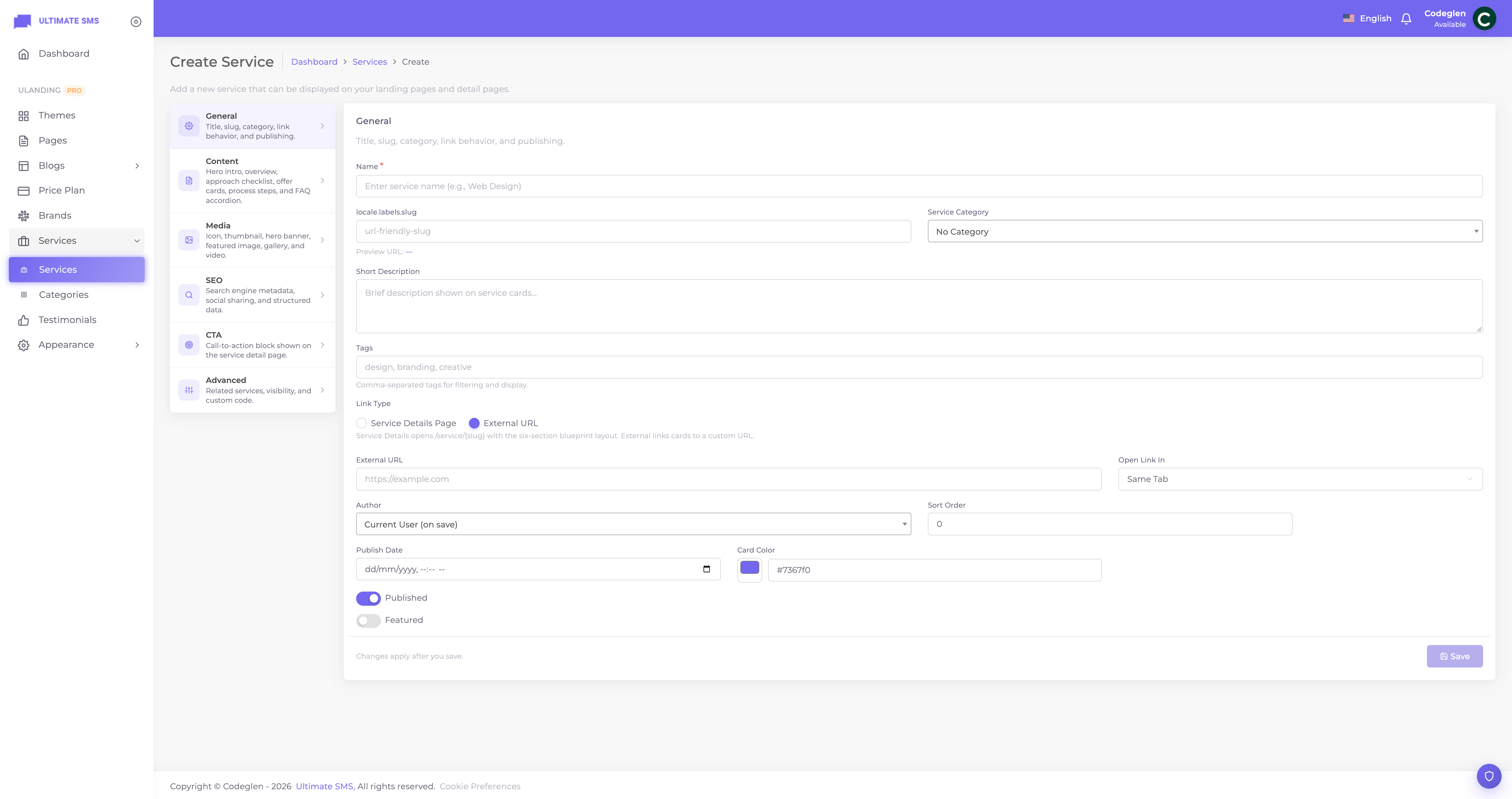
Screenshot: Service edit form showing the tabs
Service categories
Manage in Services → Categories. Each category has:
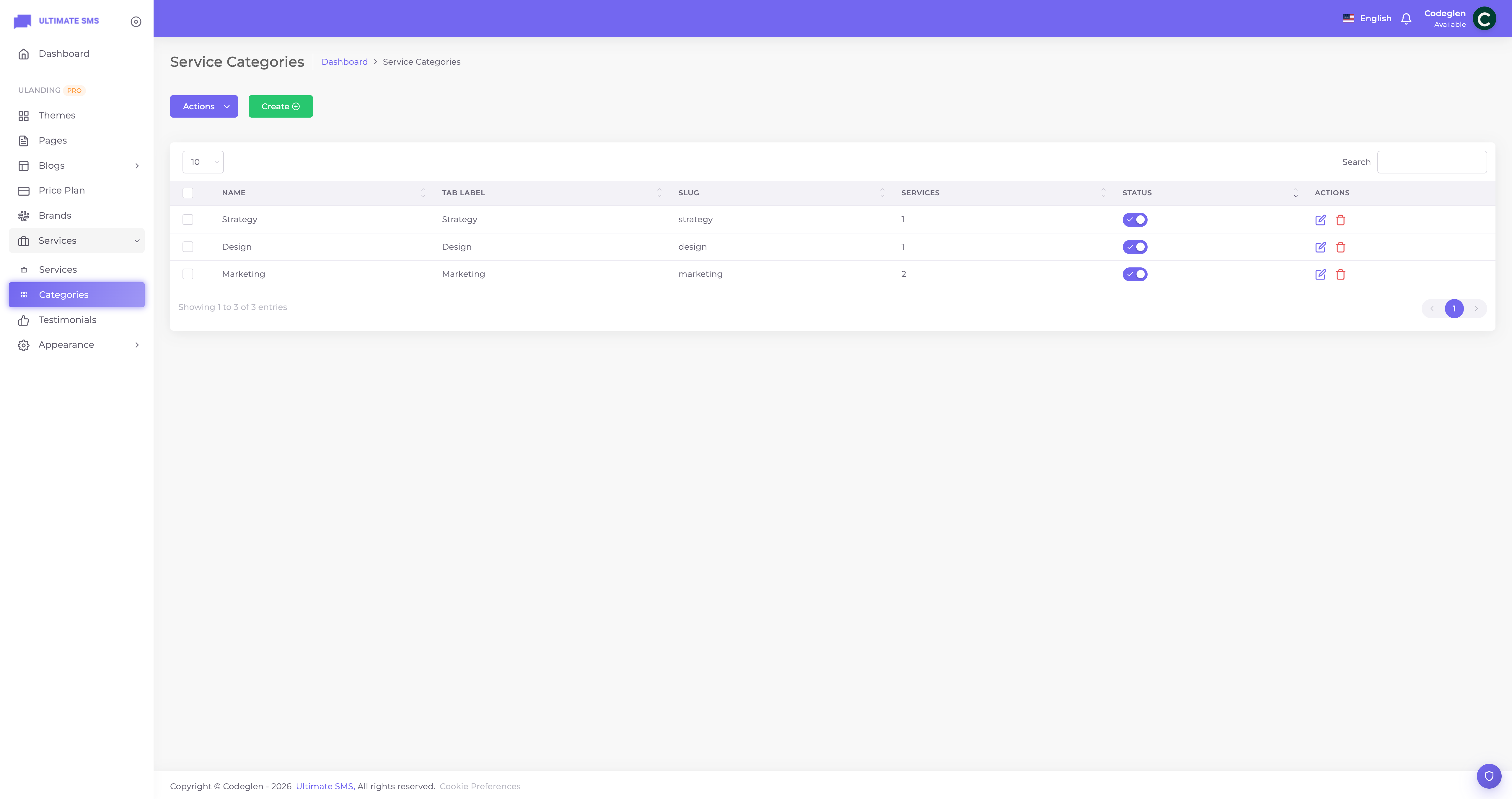
Screenshot: Services → Categories
| Field | What it does |
|---|---|
| Name | The category name. |
| Slug | The URL part. |
| Tab label | A short label used as a tab in tabbed service layouts. |
| Sort order | Order in lists. |
| Published | Show or hide. |
Categories are used to filter services in the Service Section block and to power tabs in some layouts.
How a service appears on the site
- On a page: Add a Service Section block. It shows your published services as cards.
- Its own page: If Enable detail page is on, the service gets a URL at
/services/your-slug. Cards link to it automatically. - External link: If the detail page is off but you set a URL, the card links there instead.
Featured image, SEO and slug
- The thumbnail is the card image; the hero banner and featured image are for the detail page.
- The slug forms the detail URL:
yoursite.com/services/<slug>. - Fill the SEO tab so the service ranks and shares well — see SEO.
Status
- Published services are visible; unpublished are hidden.
- Toggle on the list, in the form, or via bulk actions.
Best practices
- Write benefit‑led names and descriptions ("Grow Organic Traffic" not just "SEO").
- Use consistent thumbnails for a tidy grid.
- Enable detail pages for important services so they have their own SEO‑friendly URL.
- Assign categories to enable filtering and tabs.
Troubleshooting
| Problem | Fix |
|---|---|
| Service not on the page | Publish it; check the Service Section's category filter. |
| Detail page is a 404 | Enable Detail page, set a slug, and publish. |
| Card image missing | Upload a thumbnail. |
| Wrong category tab | Assign the service to the right category. |
Continue to Service Detail Pages.