Page Builder
The Page Builder is where you design a page visually by stacking and editing blocks (also called widgets, sections or addons — they all mean the same thing). No code required.
Open it from Pages → (a page) → Page Builder. The page must have Use Page Builder ticked.
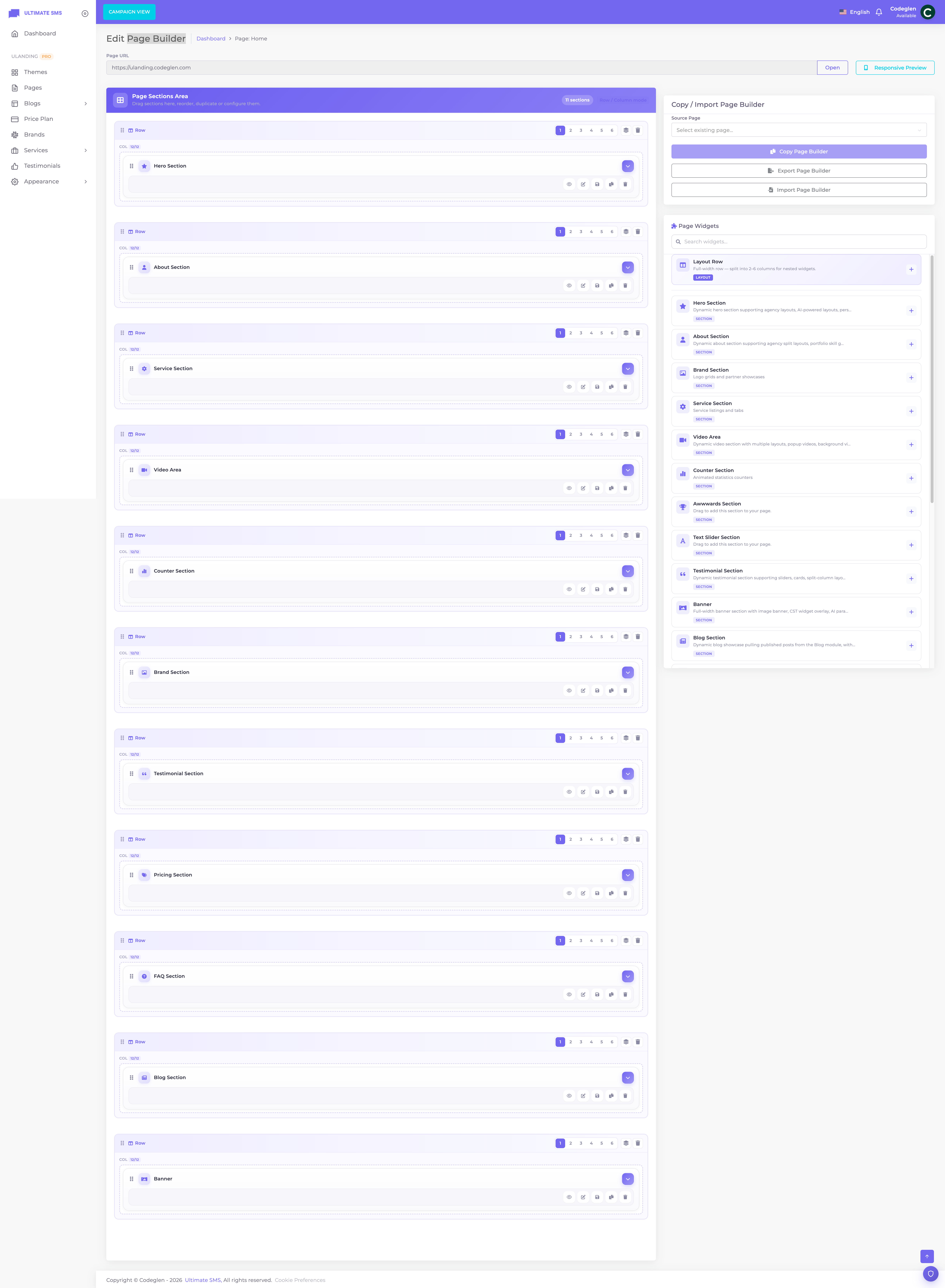
Screenshot: The Page Builder editing screen (canvas on the left, widget library on the right)
The builder layout
The Page Builder screen has three areas:
- Sections canvas (left, larger) — the blocks that make up your page, stacked top to bottom.
- Widget library (right) — all available blocks, with a search box. Drag from here onto the canvas.
- Toolbar (top) — the page URL, an Open page link, and a Responsive Preview toggle.
How the Page Builder works
A page is a stack of blocks. Each block is a self‑contained section like a Hero banner, a Services grid or a Pricing table. You:
- Add blocks by dragging them from the library.
- Edit each block's content and design.
- Arrange them by dragging into the order you want.
- Save each block (or the whole page).
   ┌─────────────────────────────┐
   │  HERO        (block 1)       │
   ├─────────────────────────────┤
   │  ABOUT       (block 2)       │
   ├─────────────────────────────┤
   │  SERVICES    (block 3)       │
   ├─────────────────────────────┤
   │  PRICING     (block 4)       │
   ├─────────────────────────────┤
   │  CTA         (block 5)       │
   └─────────────────────────────┘
Adding a block
- Find the block in the widget library (use the search box to filter).
- Drag it onto the canvas, or click it to add it to the bottom.
- The new block appears with default content, ready to edit.
➡️ Every block is documented in Page Builder Widgets.
Editing a block
- Click a block to expand it.
- Its settings appear, usually organized into tabs or accordion panels (e.g. Layout, Content, Style).
- Change the text, images, links and design.
- Click Save on that block.
Block actions
Each block has these actions:
| Action | What it does |
|---|---|
| Preview | See how the block looks without saving. |
| Edit | Expand/collapse the block's settings. |
| Save | Save the block's changes (goes live immediately for published pages). |
| Duplicate | Make an exact copy of the block. |
| Delete | Remove the block. |
| Drag handle | Reorder the block by dragging. |
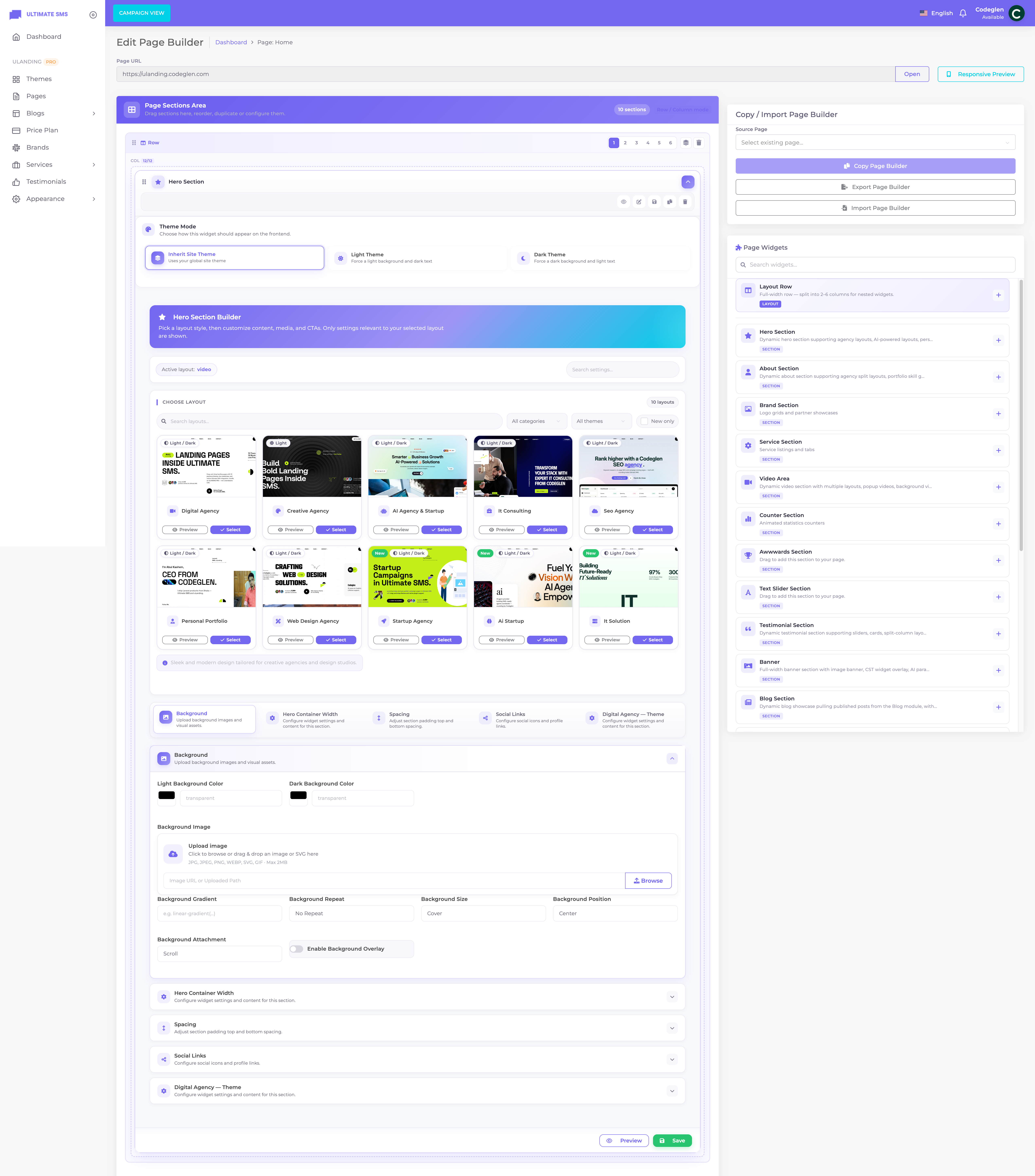
Screenshot: A block expanded with its settings tabs and action buttons
Choosing a layout (variant)
Most blocks offer several layouts (variants) — different designs for the same kind of content. For example, the Hero block has 10 layouts and the Service block has 11.
To change a layout:
- Expand the block.
- In the Layout picker, click the layout card you want.
- The block's fields update to match that layout (some fields only appear for certain layouts).
Tip Pick your layout first, then fill in the content — because the available fields change depending on the layout you choose.
Save, Preview, Draft & Publish
- Save stores your changes. For a published page, saved changes are live right away.
- Preview shows the block (or page) without saving — handy for experimenting.
- There is no separate "draft" for individual blocks — saving stores them. To keep an entire page hidden, set the page itself to Draft in Pages.
- "Published" for content blocks (Services, Blog, Pricing, etc.) refers to whether the underlying content items are published — see each content chapter.
Note When you save a block, the page's cache is cleared automatically so visitors see the change.
Reordering blocks
Drag a block by its handle to move it up or down. The new order is saved automatically.
Duplicating a block
Click Duplicate to copy a block, including all its settings. The copy appears right after the original. Great for repeating a section style with different content.
Deleting a block
Click Delete to remove a block. This can't be undone from the builder, so be sure.
Visibility (showing/hiding a block)
Most sections support a visibility toggle (is_visible). Hide a section without deleting it when you want to draft a layout or seasonally disable a block.
| State | Result |
|---|---|
| Visible (default) | Section renders on the published page |
| Hidden | Section is kept in the builder but skipped on the front end |
Theme modes (Inherit / Light / Dark)
Every block has a Theme Mode setting:
| Option | Effect |
|---|---|
| Inherit (default) | Uses the global site mode from Customizer → General |
| Light | Forces light backgrounds and text for this section |
| Dark | Forces dark backgrounds and text for this section |
Rendering behavior
- Customizer sets the site light/dark base.
- Each section resolves Inherit to that base, or locks Light/Dark.
- Section background color (light) and background color (dark) apply to the matching mode so alternating bands stay readable.
Example On a light site, set your CTA block to Dark to make it pop as a bold, contrasting section.
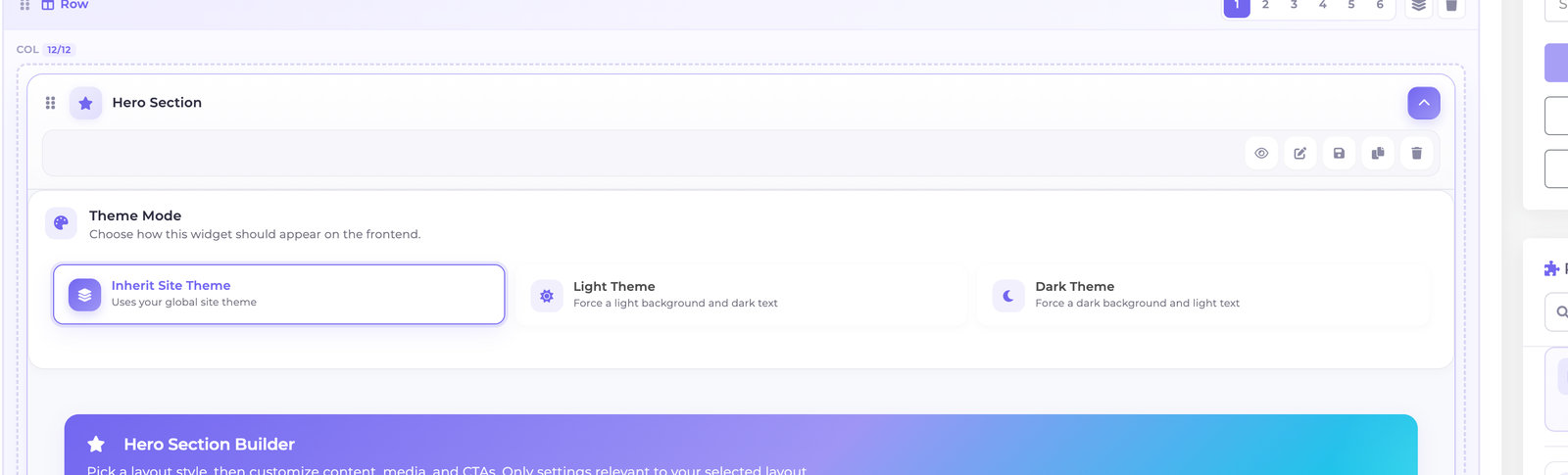
Screenshot: A block's Theme Mode selector (Inherit / Light / Dark)
Background & spacing
| Control | What it does |
|---|---|
| Background color (light) | Section background in light mode |
| Background color (dark) | Section background in dark mode |
| Background image / overlay | Where the layout supports hero/CTA media |
| Padding top / bottom | Vertical spacing of the section |
| Container width | Narrow, normal, wide, or full content width |
Responsive preview
Click the Responsive Preview toggle in the toolbar to preview how the page looks on phone and tablet widths without leaving the builder.
➡️ See Responsive Design for more.
Columns and rows (multi‑column layouts)
By default, blocks stack in a single column. You can arrange the page into columns:
Simple column mode
- Use the column switcher (1–6) in the toolbar to split the page into columns.
- Drag blocks into the column you want.
- Full‑width blocks (like a Hero or Banner) sit outside the columns, either before or after the grid.
Advanced row mode
- Some pages use a row/column tree for more control: each row can have its own number of columns, and you drag a Layout Row from the library to add one.
- This mode shows a "Row column mode" badge and is enabled per page.
Note Most users only need the single‑column stack. Use columns when you want, say, two blocks side by side.
Common design controls (most blocks)
While each block has unique fields (documented per‑block), many share these common design controls:
| Control | What it does |
|---|---|
| Spacing (padding top/bottom) | The empty space above and below the block. |
| Container width | How wide the block's content is (narrow, normal, wide, full). |
| Background | A background color or image for the block. |
| Overlay | A color layer over a background image (with opacity) for readability. |
| Animation | Motion effects like fade/scale/parallax on scroll. |
| Colors | Text and accent colors. |
| Buttons | Button text, link, colors, hover colors, border, radius, padding, shadow. |
| Typography | Fonts, sizes and weights for headings/text. |
| Icons | Icon pickers for items (Font Awesome class, SVG, or image). |
Tip Use padding top/bottom to control the rhythm of your page. Consistent spacing between sections makes a site look professional.
Media uploads in the builder
Image and video fields open a media picker. Limits:
- Images: up to 2 MB each.
- Videos: up to 50 MB each.
Tip Compress images before uploading (aim for under 300 KB for photos). Smaller images = faster pages. For video, prefer linking a YouTube/Vimeo URL where a block supports it, instead of uploading a large file.
Building a page: a recommended flow
- Add a Hero at the top.
- Add About or a Feature List to explain what you do.
- Add Services (pulls from your Services content).
- Add Counter or Awards for credibility.
- Add Testimonials for social proof.
- Add Pricing if relevant.
- Add FAQ to handle objections.
- Add a CTA at the bottom to drive action.
- Set spacing, colors and per‑block light/dark mode.
- Preview, check on mobile, then Save.
➡️ Continue to the full block reference: Page Builder Widgets Overview.
Page Builder FAQ
My block isn't showing on the live page.
Make sure the page is Published and the block is Saved. Clear caches if needed (php artisan optimize:clear).
The page builder won't load. Use a modern browser and check your internet/JS console. See Troubleshooting.
I changed a layout and lost some fields. Different layouts expose different fields. Your data is still stored — switch back to the previous layout to see those fields again.
Can I copy a block to another page? Duplicate works within a page. To replicate on another page, recreate the block and copy the settings, or duplicate then move content manually.