Media & Image Upload
uLanding includes a unified media uploader used across Branding, Page Builder, Widget Builder, Services, Blog, Brands, Testimonials, and more.
Using the media uploader
Wherever you see an image (or video) field, you can:
| Action | What it does |
|---|---|
| Browse | Open your computer’s file picker |
| Drag & drop | Drop a file onto the upload zone |
| Replace | Swap the current file for a new one |
| Remove | Clear the field (logo / image no longer used) |
| Preview | See the selected file before saving |
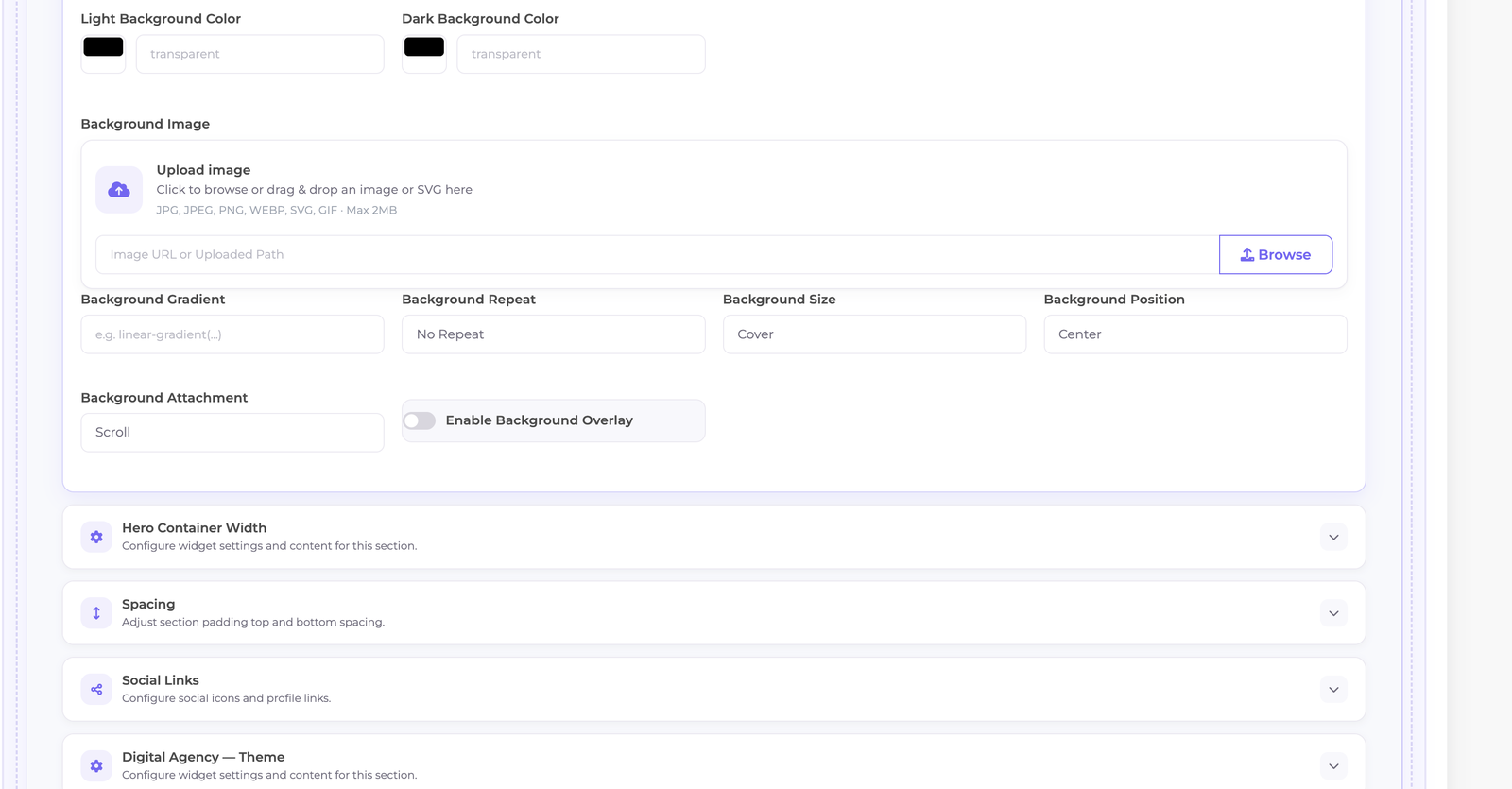
Screenshot: Media uploader with browse, drag & drop, replace, and remove controls
Supported formats
Images
| Format | Best for | Notes |
|---|---|---|
| JPG / JPEG | Photographs | Good default for heroes |
| PNG | Graphics with transparency | Logos, UI art |
| WebP | Modern photos | Smaller files when available |
| GIF | Simple animation | Use sparingly |
| SVG | Logos & icons | Sharp at any size; supported by the uploader |
Note Some content types restrict formats (for example, blog feature images may allow JPG/PNG/WebP only). When SVG is accepted, the field’s file picker includes
.svg.
Video
| Source | Recommendation |
|---|---|
| Upload | Short clips only (up to 50 MB in Page Builder) |
| YouTube / Vimeo URL | Preferred for marketing videos |
Size limits
| Context | Typical limit |
|---|---|
| Page Builder images | 2 MB |
| Page Builder videos | 50 MB |
| Branding logos / favicons | ~2 MB |
| CTA / large backgrounds | ~4 MB (field-dependent) |
Also respect your server’s upload_max_filesize and post_max_size (Requirements).
Background, SVG & pattern usage
In sections and Customizer areas you may combine:
- Solid colors (light and dark background colors on sections)
- Background images (hero, CTA, banners)
- Overlays (where the section layout supports them)
- SVG marks and decorative shapes (via uploads or theme markup)
- Gradients / patterns (theme or design-token driven)
Section background colors:
- Light background — used when the section (or site) is in light mode
- Dark background — used when the section (or site) is in dark mode
See Page Builder for section theme mode and spacing.
Where media is used
| Field | Where |
|---|---|
| Logo, dark logo, favicon | Customizer → Branding |
| Hero / background images | Page Builder sections |
| Service thumbnail, hero, gallery | Services |
| Feature image | Blog posts |
| Brand logos | Brands (SVG allowed) |
| Author photos, backgrounds | Testimonials |
| Widget images | Widget Builder |
Demo images
Importing a theme demo copies placeholder images into storage so layouts are never empty. Replace them with your own brand assets before launch.
Best practices
- Compress every photograph before upload (aim under ~300 KB when possible).
- Prefer SVG for logos and icons.
- Always add meaningful alt text for accessibility and SEO.
- Use Replace instead of stacking unused files in fields.
- Host long videos on YouTube/Vimeo and link them.
Troubleshooting
| Problem | Fix |
|---|---|
| Images don’t appear | Run php artisan storage:link; ensure storage is writable |
| Upload fails | File may exceed field or PHP limits |
| SVG rejected | That field may not allow SVG — use PNG instead |
| Image blurry | Upload a higher-resolution source |
| Slow page | Compress images; reduce hero file size |
Continue to SEO.