Pages
A page is a single web page on your site — your Home, About, Services, Contact, Privacy Policy, and so on. This chapter covers creating and managing pages. The next chapter, Page Builder, covers designing them visually.
Open Pages in the admin sidebar.
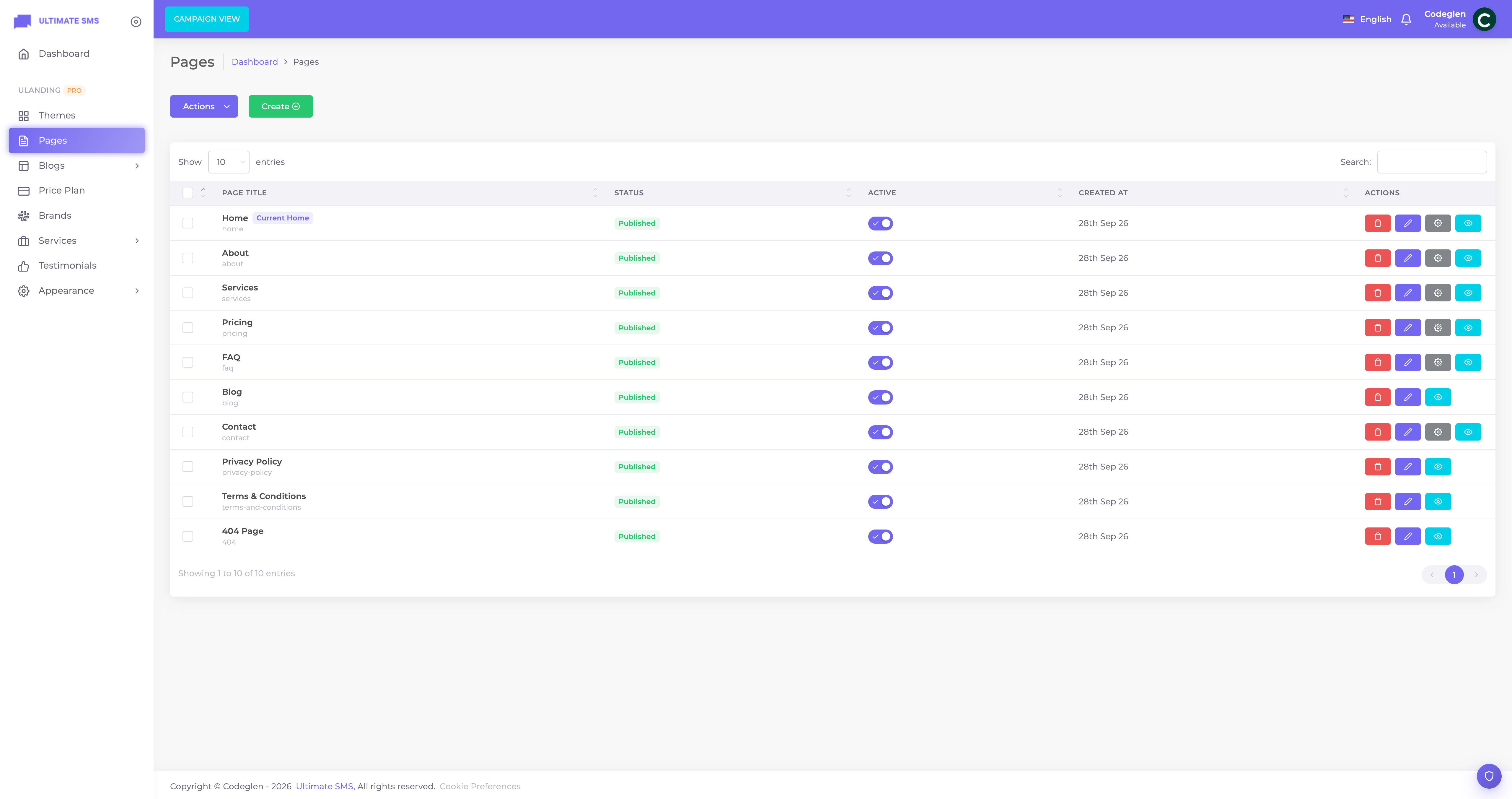
Screenshot: Pages list screen
The Pages list
The Pages screen shows all your pages with:
- Title and slug (the URL part).
- Status — Published or Draft.
- A status toggle to publish/unpublish instantly.
- Edit and Page Builder actions.
- Search and bulk actions (publish, draft, delete).
Creating a page
- Click Create / Add New.
- Fill in the fields (see below).
- Click Save.
Page fields
| Field | Required | What it does |
|---|---|---|
| Title | Yes | The page name (e.g. "About Us"). |
| Slug | Auto | The URL part (e.g. about-us → yoursite.com/about-us). Auto‑filled from the title; you can edit it. |
| Content | No | A simple rich‑text body, used when the page does not use the Page Builder. |
| Use Page Builder | No | Tick this to design the page with drag‑and‑drop blocks instead of the simple editor. |
| Status | Yes | Published (live) or Draft (hidden). |
| Visibility | Yes | Public (everyone) or Auth (logged‑in users only). |
SEO fields (when editing)
| Field | What it does |
|---|---|
| Meta title | The title shown in Google and the browser tab. |
| Meta description | The summary shown under your link in Google. |
| OG image | The preview image when the page is shared on social media. |
| Canonical URL | The "official" URL for this page (advanced SEO). |
| Robots | Tells search engines whether to index the page (e.g. index, follow). |
| Favicon | A page‑specific browser‑tab icon (optional). |
| Schema markup | JSON‑LD structured data for rich Google results (advanced). |
➡️ See SEO for how to fill these in well.
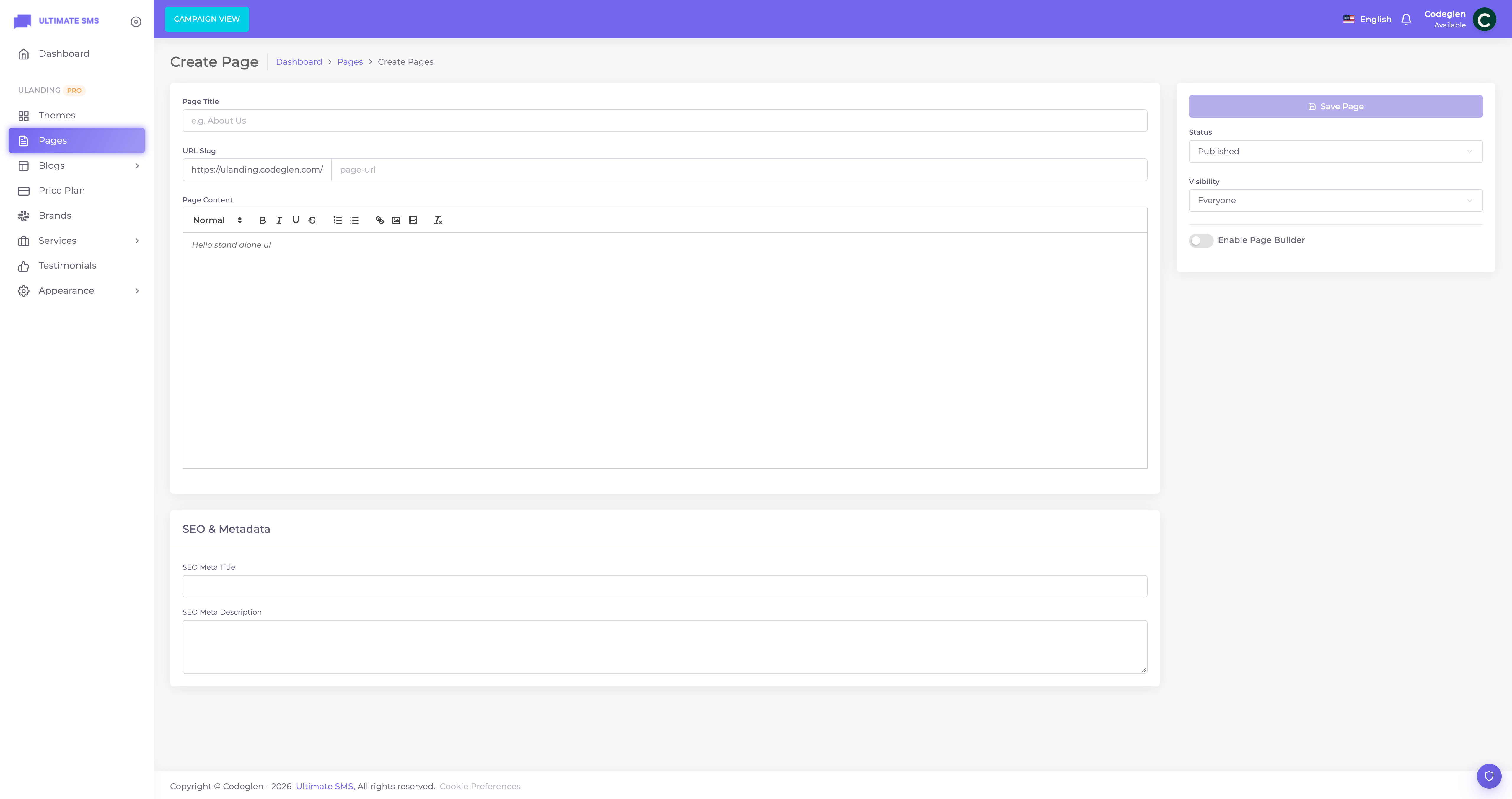
Screenshot: Page create form
Choosing how to build a page
You have two ways to put content on a page:
Option A — Simple editor (Content field)
Best for text‑heavy pages like Privacy Policy or Terms. Just type into the rich‑text Content field. Leave Use Page Builder unticked.
Option B — Page Builder (recommended for marketing pages)
Best for your Home, About, Services and landing pages. Tick Use Page Builder, save, then open the Page Builder to drag in blocks.
Tip You can switch a page to the Page Builder at any time by ticking Use Page Builder and saving. The simple Content field is then hidden and the builder takes over.
Slugs and the URL
The slug decides the page's web address:
- Slug
about→https://yoursite.com/about - The page with the home slug (default
home) is shown athttps://yoursite.com/and/homeredirects to/.
Warning You cannot use reserved slugs like
admin,login,blog,api,privacy-policy,terms-of-use, and others, because the system uses them. uLanding will reject these. See the full list in Configuration.
Draft and publish
- Draft pages are saved but not visible to visitors (they get a 404).
- Published pages are live.
- Toggle status on the list screen, in the form, or via bulk actions.
Tip Build a new page as a Draft, perfect it in the Page Builder, then flip it to Published when ready.
Page visibility (public vs. members‑only)
| Visibility | Who can see it |
|---|---|
| Public | Everyone. |
| Auth | Only logged‑in users. Visitors who aren't logged in are sent to the login page. |
Example Use Auth visibility for a "Members Area" or "Client Portal" page that only registered users should reach.
Editing the homepage
Your homepage is the page with the home slug (set by demo import, or by ULANDING_HOME_PAGE_SLUG). To edit it:
- Go to Pages.
- Find Home and open the Page Builder.
- Edit the blocks (Hero, Services, Pricing, etc.).
See Configuration → Choosing your homepage to use a different page as your homepage.
Deleting a page
Use the delete action on the list, or select pages and use the bulk delete action.
Warning Deleting a page also removes its page‑builder layout. Pages are soft‑deleted, but treat deletion as permanent for planning purposes. Don't delete pages that are linked from your menu without updating the menu too.
Common pages and their slugs
A typical site (matching the demo) has:
| Page | Slug | Notes |
|---|---|---|
| Home | home |
Shown at / |
| About | about |
|
| Services | services |
|
| Pricing | pricing |
|
| Blog | (handled automatically at /blog) |
The blog archive is built‑in |
| Contact | contact |
Often the CTA target |
| Privacy Policy | (reserved — handled by system) | |
| Terms | (reserved — handled by system) | |
| 404 | configured in Appearance → 404 Settings |
Note The
blog,privacy-policyandterms-of-useslugs are reserved and handled by the system, so you don't create normal pages for them.
Continue to Page Builder.