Welcome to uLanding
What is uLanding?
uLanding is the Landing Page Builder Plugin for Ultimate SMS — a premium plugin that lets you build complete marketing websites inside Ultimate SMS without writing code.
It turns your Ultimate SMS admin panel into a powerful website studio: homepage, service pages, blog, pricing tables, contact pages, and more. Drag blocks onto a page, fill in your text and images, click Save, and your changes go live.
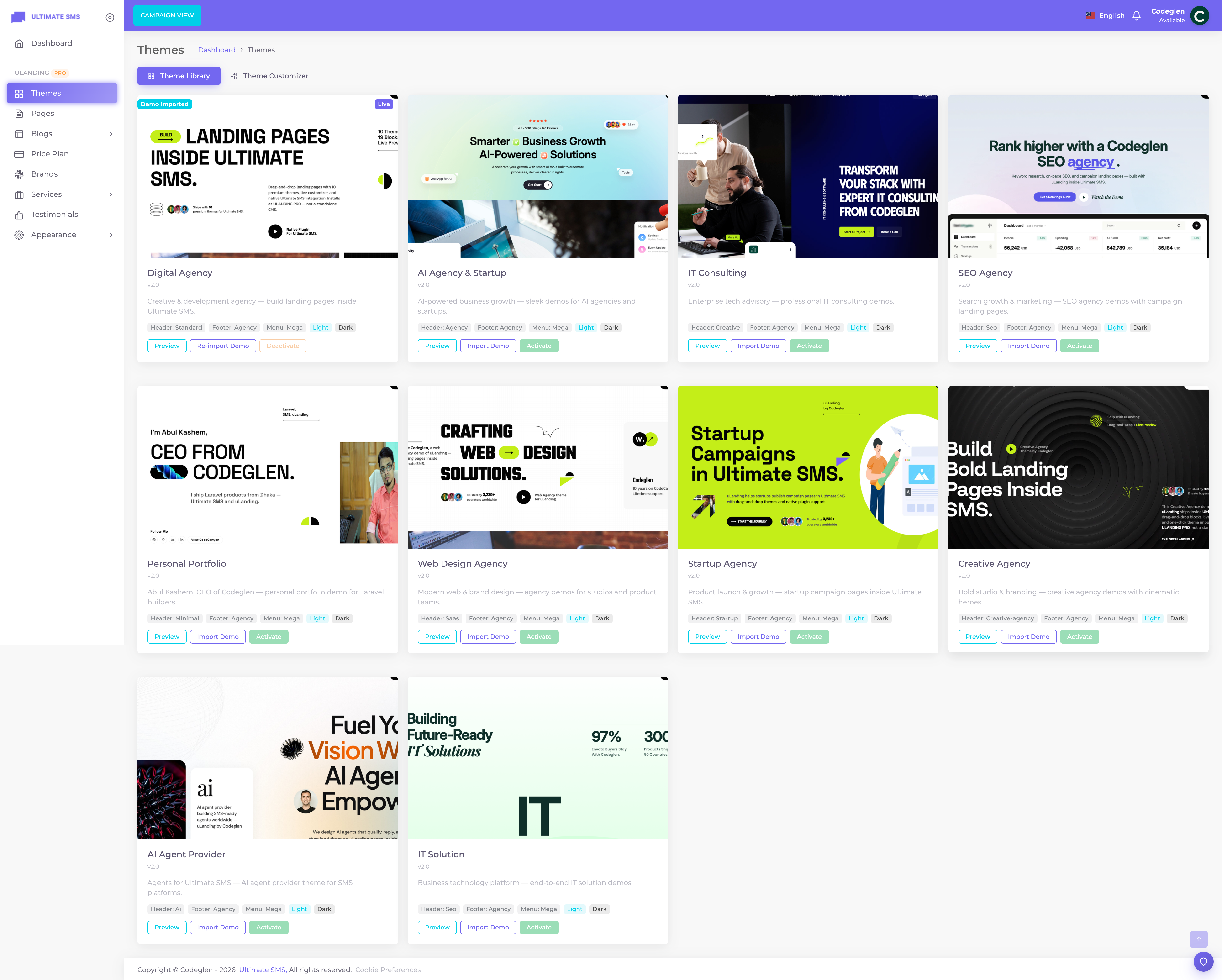
Screenshot: uLanding admin dashboard with the Themes library open
Why use uLanding?
| Benefit | What it means for you |
|---|---|
| Built for Ultimate SMS | No separate CMS — content lives in your existing admin |
| No code required | Visual Page Builder + Theme Customizer |
| 10 pro themes | Agency, AI, SEO, IT, portfolio, startup, and more |
| One-click demos | Import pages, menus, widgets, and media instantly |
| Light & Dark modes | Global + per-section control |
| CodeCanyon ready | Install with your Envato purchase code via Plugins → Add Plugin |
Main features (at a glance)
- Theme Library with demo import
- Live Theme Customizer (colors, fonts, header, footer, menu)
- Drag-and-drop Page Builder (19 section types, 100+ layouts)
- Blog, Brands, Services, and Price Plan modules
- Widget Builder for footer & blog sidebar
- SEO fields, responsive layouts, and caching-aware saves
Full list: Features.
Who is uLanding for?
uLanding was designed for business owners, marketers and agencies who want a stunning website without hiring a developer. You do not need to know:
- HTML or CSS
- PHP or Laravel
- JavaScript
- Databases or servers
If you can fill in a form and drag a box with your mouse, you can build a complete website with uLanding.
What can you build with it?
With uLanding you can create:
- A homepage with a hero banner, services, testimonials, pricing and a call‑to‑action.
- Service pages with detailed descriptions, benefits, process steps and FAQs.
- A blog with categories, tags, author profiles and comments.
- Pricing tables that switch between monthly and yearly billing.
- A portfolio, about page, contact page, privacy policy and terms page.
- A custom header, footer and slide‑in off‑canvas menu.
- Multi‑language sites, including right‑to‑left (RTL) languages like Arabic.
All of this is fully responsive, meaning it automatically looks great on desktops, laptops, tablets and phones.
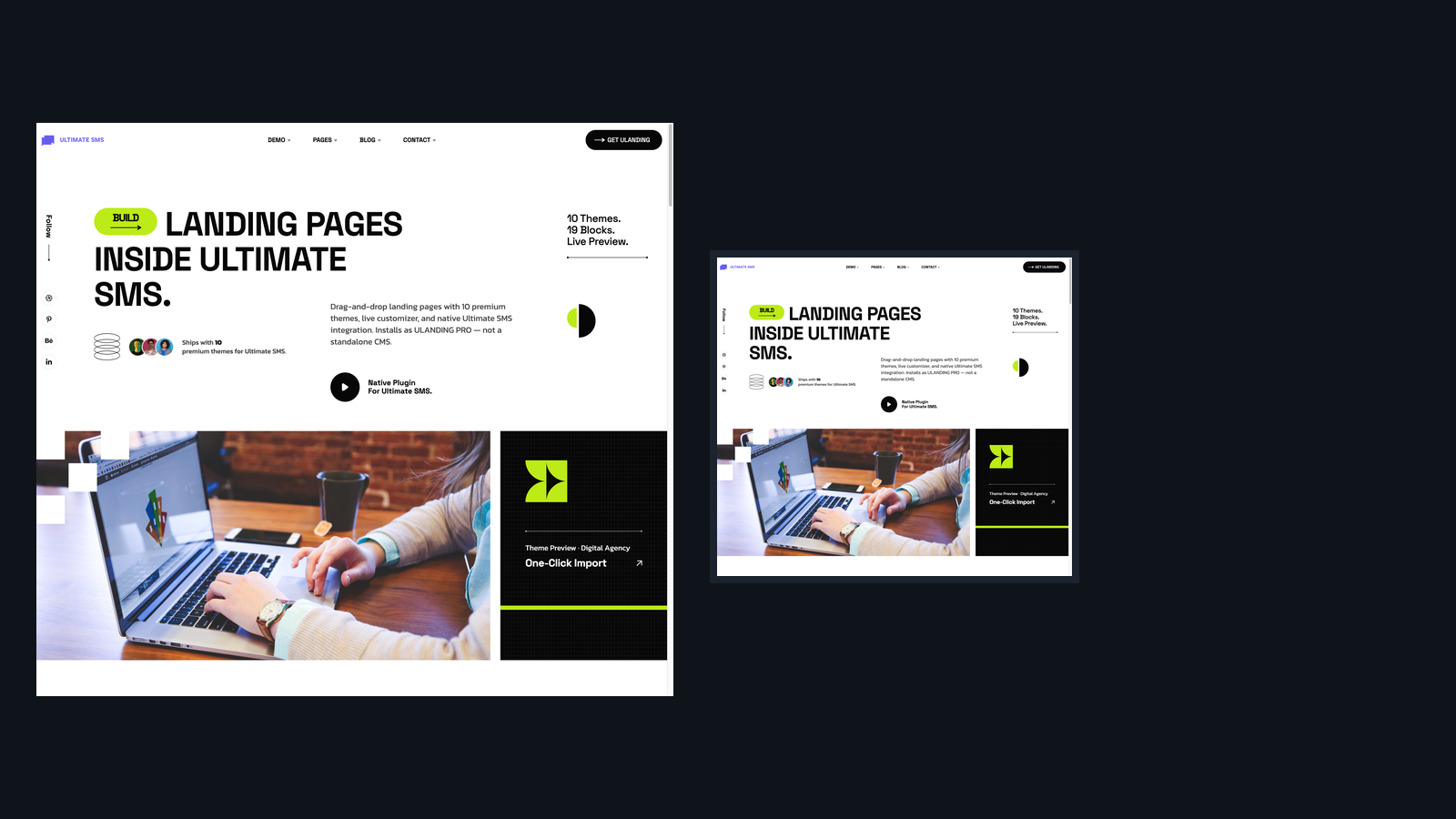
Screenshot: A finished landing page built with uLanding (desktop + mobile preview)
How does it work? (The big picture)
uLanding is built around a few simple ideas. Understanding these now will make everything else easy.
        ┌──────────────────────────────────────────────┐
        │                  YOUR WEBSITE                  │
        └──────────────────────────────────────────────┘
                              ▲
        ┌─────────────────────┼─────────────────────────┐
        │                     │                          │
   ┌────────┐          ┌────────────┐            ┌──────────────┐
   │ THEME  │          │   PAGES    │            │   CONTENT    │
   │ (look) │          │ (builder)  │            │ (your data)  │
   └────────┘          └────────────┘            └──────────────┘
   colors, fonts,      drag-and-drop             services, blog
   header, footer      blocks per page           posts, pricing,
   layout style                                  testimonials, brands
-
You pick a Theme. A theme controls the overall look of your site — the style of the header, the footer, the fonts and the default colors. uLanding ships with 10 ready‑made themes.
-
You import Demo Content (optional but recommended). With one click, uLanding fills your site with example pages, services, blog posts, pricing and images so you have a complete site to edit instead of a blank page.
-
You build Pages with the Page Builder. Each page is made of stacked blocks (called widgets or sections) — a Hero block, a Services block, a Pricing block, and so on. You drag them in, edit them, and arrange them.
-
You manage Content — Services, Blog posts, Pricing plans, Testimonials and Brands — in simple list‑and‑form screens. Your blocks then automatically pull in this content.
-
You customize the Theme — colors, fonts, header, footer and the slide‑in menu — using the live Theme Customizer.
-
You publish. Anything you mark as Published becomes visible to your visitors.
A quick vocabulary
You will see these words throughout the documentation. Here is what each one means in plain English.
| Word | Plain‑English meaning |
|---|---|
| Theme | The overall visual style of your site (header style, footer style, fonts, default colors). |
| Page | A single web page, e.g. "Home", "About", "Contact". |
| Page Builder | The drag‑and‑drop editor where you build a page from blocks. |
| Widget / Section / Addon | A single block on a page, e.g. a Hero banner or a Pricing table. (These three words mean the same thing in uLanding.) |
| Layout / Variant | A different design for the same block. The Hero block, for example, has 10 layouts to choose from. |
| Theme Customizer | The control panel for colors, fonts, header, footer and the slide‑in menu. |
| Off‑Canvas | The panel that slides in from the side when you tap the menu button (often used on mobile). |
| Footer Builder / Widget Builder | The tool for building your footer and your blog sidebar from small widgets. |
| Demo Import | A one‑click way to fill your site with realistic example content. |
| Published vs. Draft | Published content is live for visitors. Draft content is hidden until you publish it. |
What you get out of the box
- 10 professional themes covering agencies, startups, SEO, IT, portfolios and AI businesses.
- 19 page‑builder blocks, most with several layout variants (over 100 designs in total).
- 28 footer/sidebar widgets for building footers and blog sidebars.
- A blog system with categories, tags, comments and author bios.
- A services system with rich detail pages.
- Pricing tables with monthly/yearly toggles, linked to your Ultimate SMS billing plans.
- Testimonials, brand logos, menus and a mega menu.
- Light & dark mode, full responsive design, and built‑in SEO controls.
- Translations into 14 languages, including RTL support.
Requirements (summary)
| Item | Minimum |
|---|---|
| Ultimate SMS | 3.6.0+ |
| PHP | 8.2+ (8.3 recommended) |
| Browsers | Latest Chrome, Firefox, Edge, Safari |
Details: Requirements & Browser Support.
Next steps
- New here? Start with the Quick Start Guide.
- Want the full feature list? See Features.
- Setting up for the first time? See Installation.