Brands
Brands are the client/partner logos shown by the Brand Section block. Manage them in Brands.
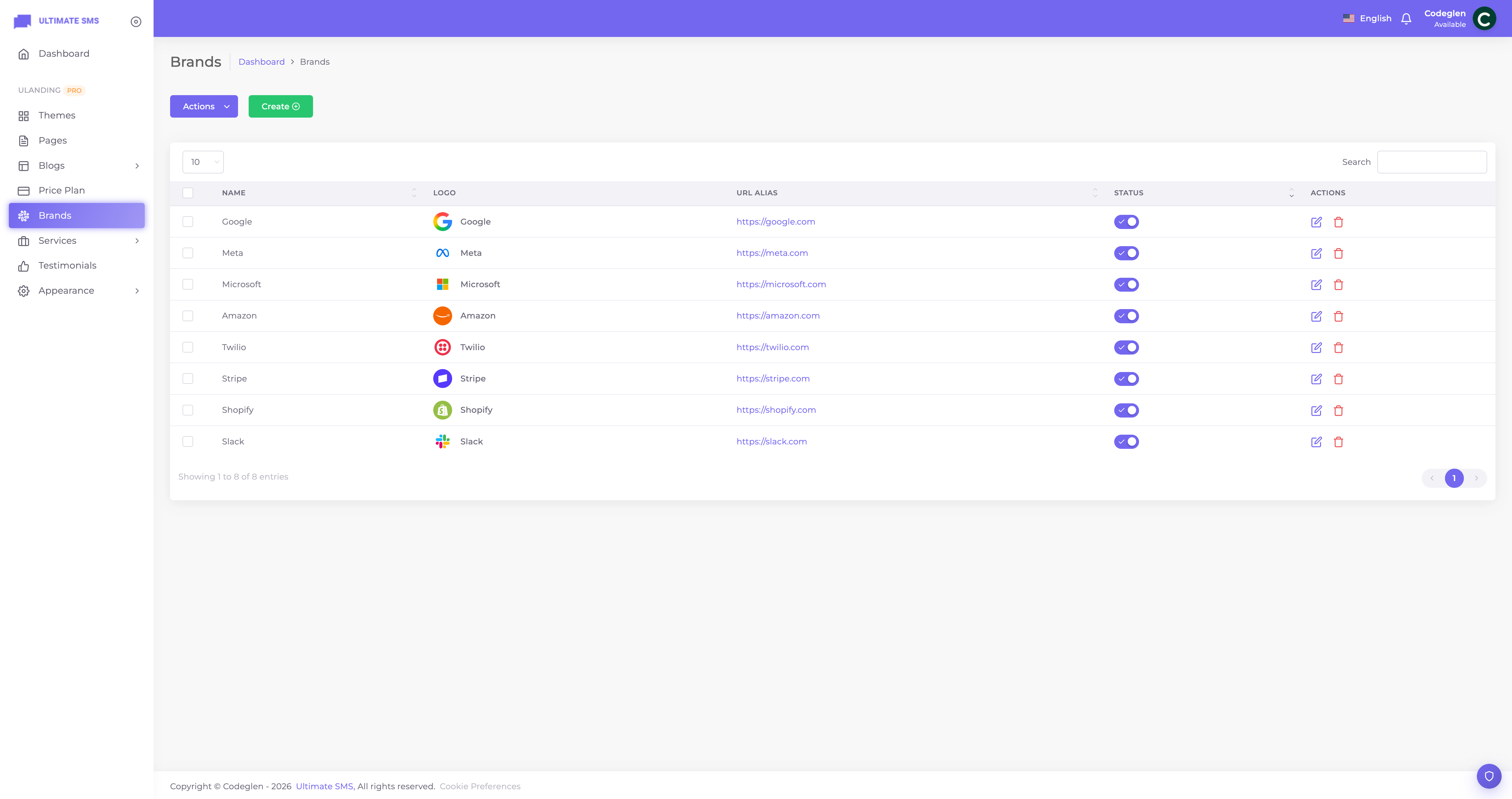
Screenshot: Brands list screen
Creating a brand
Click Create / Add New.
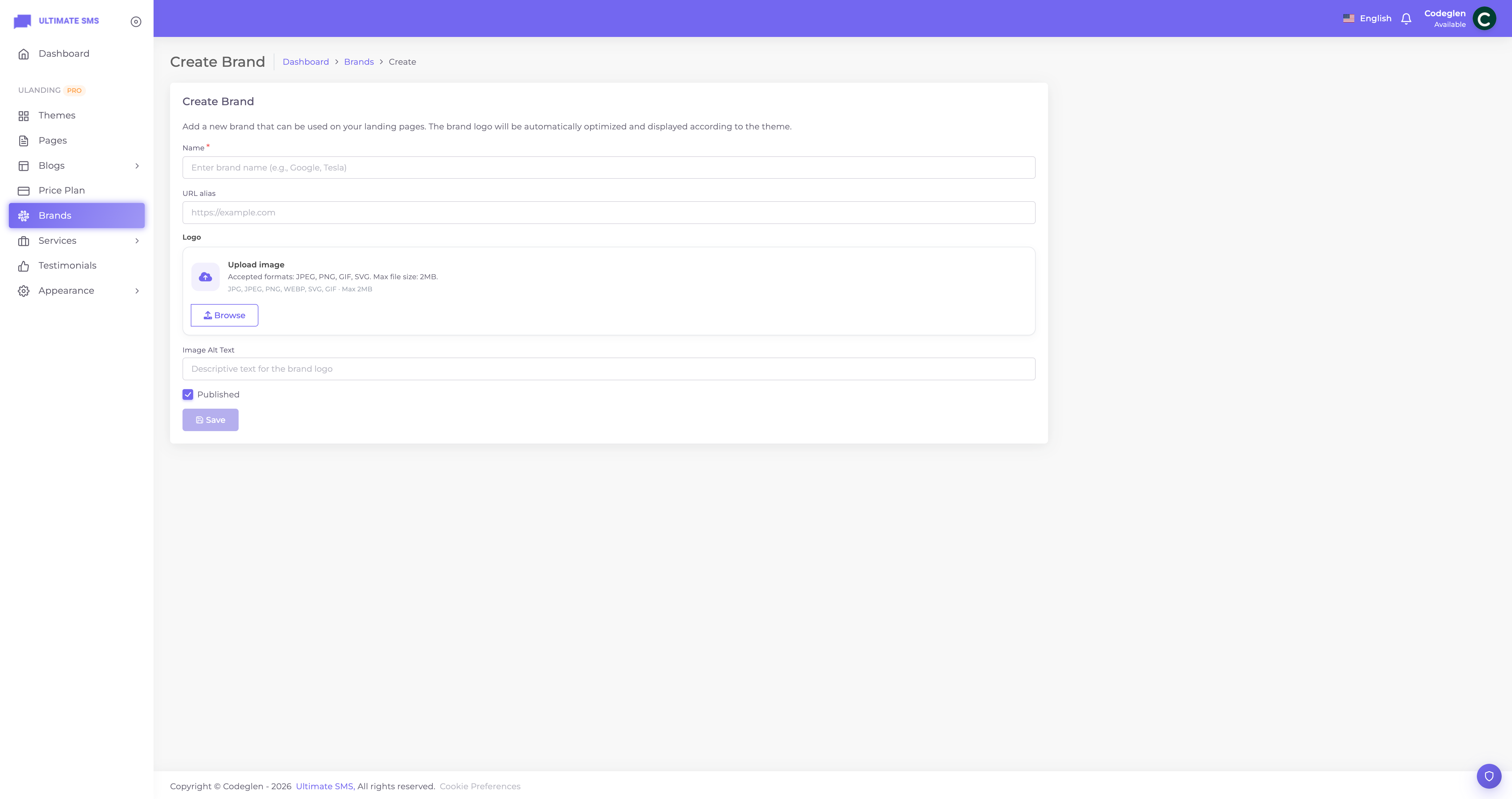
Screenshot: Brands create form
| Field | What it does |
|---|---|
| Name | The brand/company name. |
| Logo | The logo image. Required. |
| Website URL | A link to the brand's site (optional). |
| Alt text | Describes the logo for accessibility/SEO. |
| Published | Show or hide the logo. |
| Sort order | Position in the logo row/grid. |
Logo, URL and display
- Logo — upload a clean, ideally transparent (PNG/SVG) logo.
- URL — when set, the logo links to the brand's website.
- Alt text — important for screen readers and SEO.
Carousel vs. grid
The display style (scrolling carousel or static grid) is chosen in the Brand Section block (8 layouts). The Brands screen only manages the logos themselves.
Best practices
- Use transparent logos so they sit cleanly on any background.
- Keep logos a consistent height for a tidy row.
- Lead with recognizable brands to maximize trust.
- Add alt text to every logo.
- Link logos to the brand site where appropriate.
Example
- Name: "Google", Logo: a transparent Google logo, URL:
https://google.com, Alt text: "Google logo".
Troubleshooting
| Problem | Fix |
|---|---|
| Logos not showing | Add brands and publish them; add a Brand Section block. |
| Logos look uneven | Use consistent dimensions and transparent backgrounds. |
| Logo on white box | Use a transparent PNG/SVG instead. |
| Logo links nowhere | Add a website URL. |
Continue to Menus.