Admin Panel Overview
This chapter is a guided tour of every menu uLanding adds to your admin sidebar. Use it as a map: each menu links to the chapter that explains it in depth.
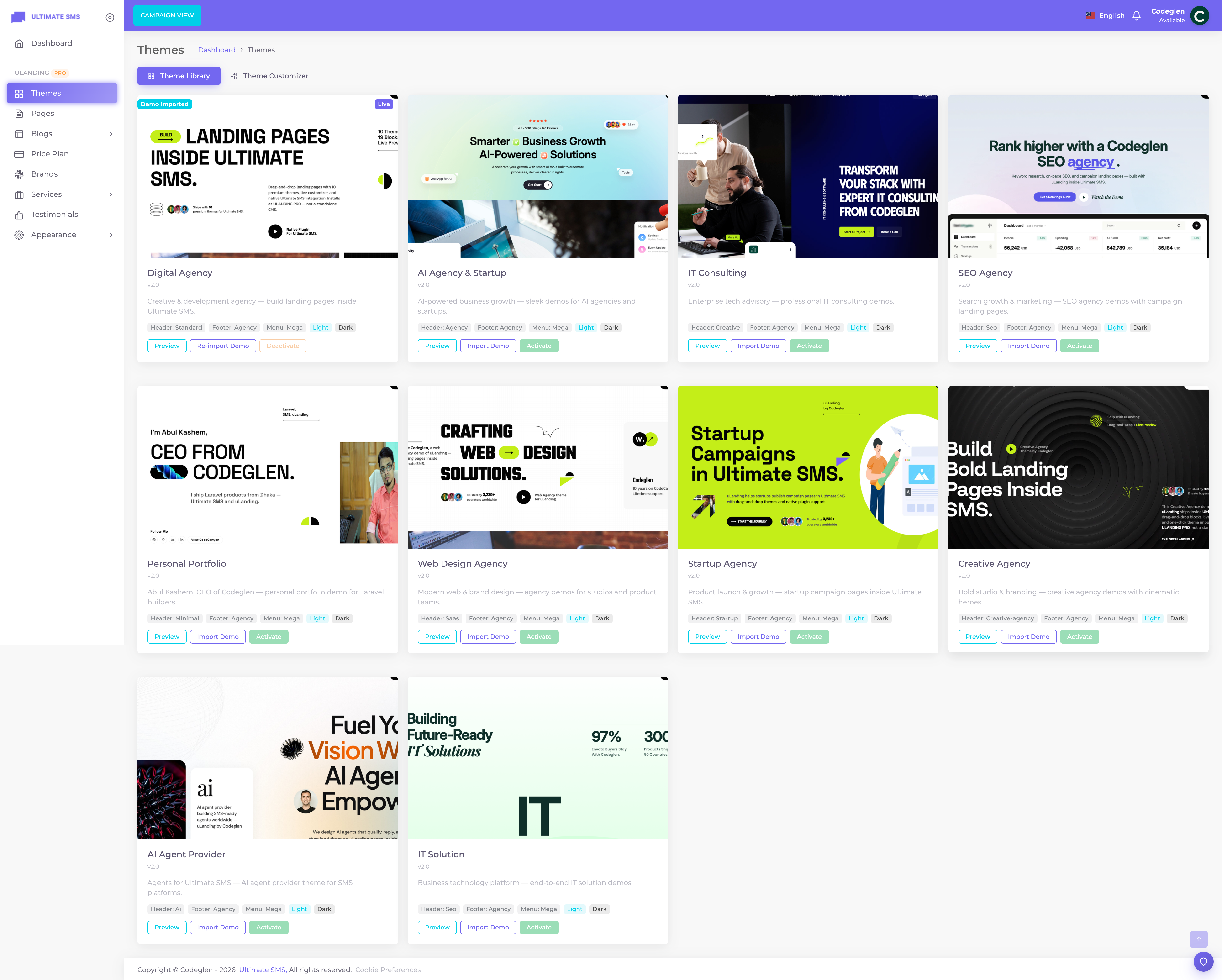
Screenshot: Admin sidebar with the uLanding menu group expanded
Where to find uLanding
After the plugin is Active under Plugins → All Plugins, uLanding appears as an ULANDING PRO group in the admin sidebar. Depending on your admin layout (vertical or horizontal), it shows either as a list of items or as a dropdown.
The menus at a glance
| Menu | What it's for | Chapter |
|---|---|---|
| Themes | Pick, preview, activate themes; open the Customizer; import demo content | Themes |
| Pages | Create and edit your web pages; open the Page Builder | Pages |
| Blogs | Posts, Categories, Tags, Comments, Settings | Blog |
| Price Plan | Your pricing cards | Pricing |
| Brands | Client / partner logos | Brands |
| Services | Services and Service Categories | Services |
| Testimonials | Customer reviews | Testimonials |
| Appearance | Widget Builder, Menu Manage, 404 Settings | below |
Note The Theme Customizer, Off‑Canvas and Social Media settings live inside the Themes → Customizer screen rather than as separate sidebar items. Older versions had them as separate menus; they now open as panels in the unified Customizer.
Themes menu
The hub for your site's look.
- Theme Library — all 10 themes with Preview, Activate, Deactivate and Import Demo buttons.
- Customizer — the live editor for colors, fonts, branding, header, menu, social, off‑canvas and footer.
➡️ Full chapter: Themes and Theme Customizer.
Pages menu
Where you create and manage your web pages.
- A searchable list of all pages with their status (Published / Draft).
- Create new pages, set their SEO, and choose whether they use the Page Builder.
- Open the drag‑and‑drop Page Builder for any page.
- Bulk actions: publish, draft, delete.
➡️ Full chapters: Pages, Page Builder.
Blogs menu
A complete blogging system, grouped into five sub‑items:
| Sub‑item | Purpose |
|---|---|
| Blogs | Write and manage posts |
| Category | Organize posts into categories |
| Tags | Tag posts for filtering |
| Comments | Moderate visitor comments (approve / reject / delete) |
| Settings | Posts per page, comments on/off, blog header, breadcrumbs, SEO |
➡️ Full chapter: Blog.
Price Plan menu
Manage the pricing cards shown by the Pricing page‑builder block. Each plan can be linked to one of your Ultimate SMS billing plans, has a feature list, an optional Popular badge and a free‑trial option.
➡️ Full chapter: Pricing.
Brands menu
Manage the client/partner logos shown by the Brand page‑builder block. Each brand has a logo, an optional website link and alt text.
➡️ Full chapter: Brands.
Services menu
Two sub‑items:
| Sub‑item | Purpose |
|---|---|
| Services | Create services with rich detail pages, galleries, video and SEO |
| Categories | Group services; categories also drive the tabs in some service layouts |
➡️ Full chapters: Services, Service Detail Pages.
Testimonials menu
Manage customer reviews used by the Testimonial page‑builder block. Each testimonial has the author's name, title, company, photo, a star rating, optional video and highlight metrics.
➡️ Full chapter: Testimonials.
Appearance menu
Three sub‑items:
| Sub‑item | Purpose | Chapter |
|---|---|---|
| Widget Builder | Build your footer and blog sidebar from 28 widgets | Widget Builder |
| Menu Manage | Build navigation menus with drag‑and‑drop | Menus |
| 404 Settings | Customize the "page not found" page | below |
404 Settings
The 404 page is shown when a visitor reaches a URL that doesn't exist. You can customize:
- Header / Title / Subtitle — the message shown.
- Button text — usually "Back to Home".
- Image — an illustration for the page.
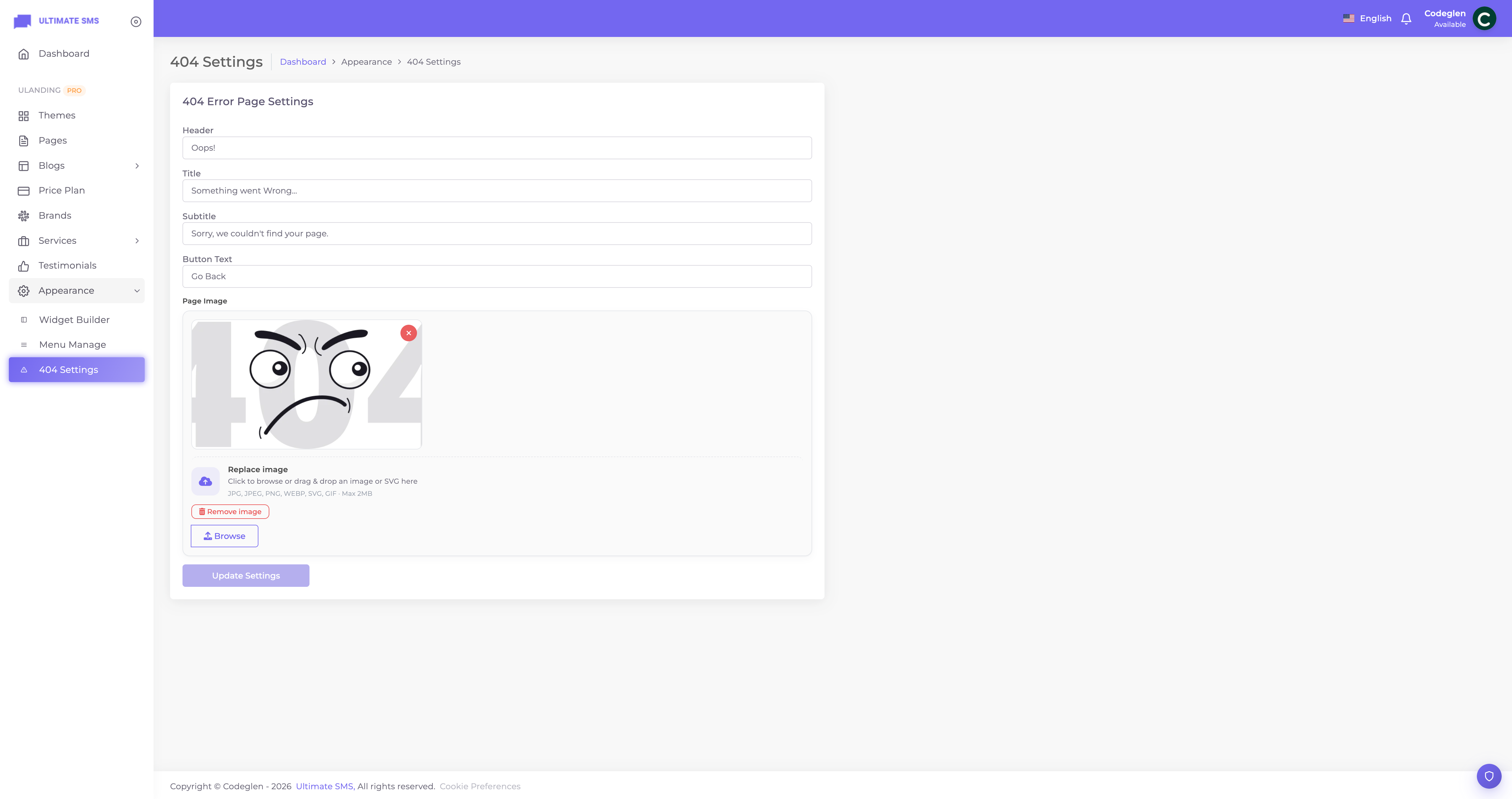
Screenshot: Appearance → 404 Settings
➡️ See Troubleshooting if your 404 page isn't appearing.
Common patterns across every screen
Every list screen in uLanding works the same way, so once you learn one, you know them all.
List screens
- A search box filters the list as you type.
- A status toggle on each row publishes/unpublishes that item instantly.
- Bulk actions let you select many rows and publish, draft/deactivate or delete them together.
- Create / Add New button opens the form.
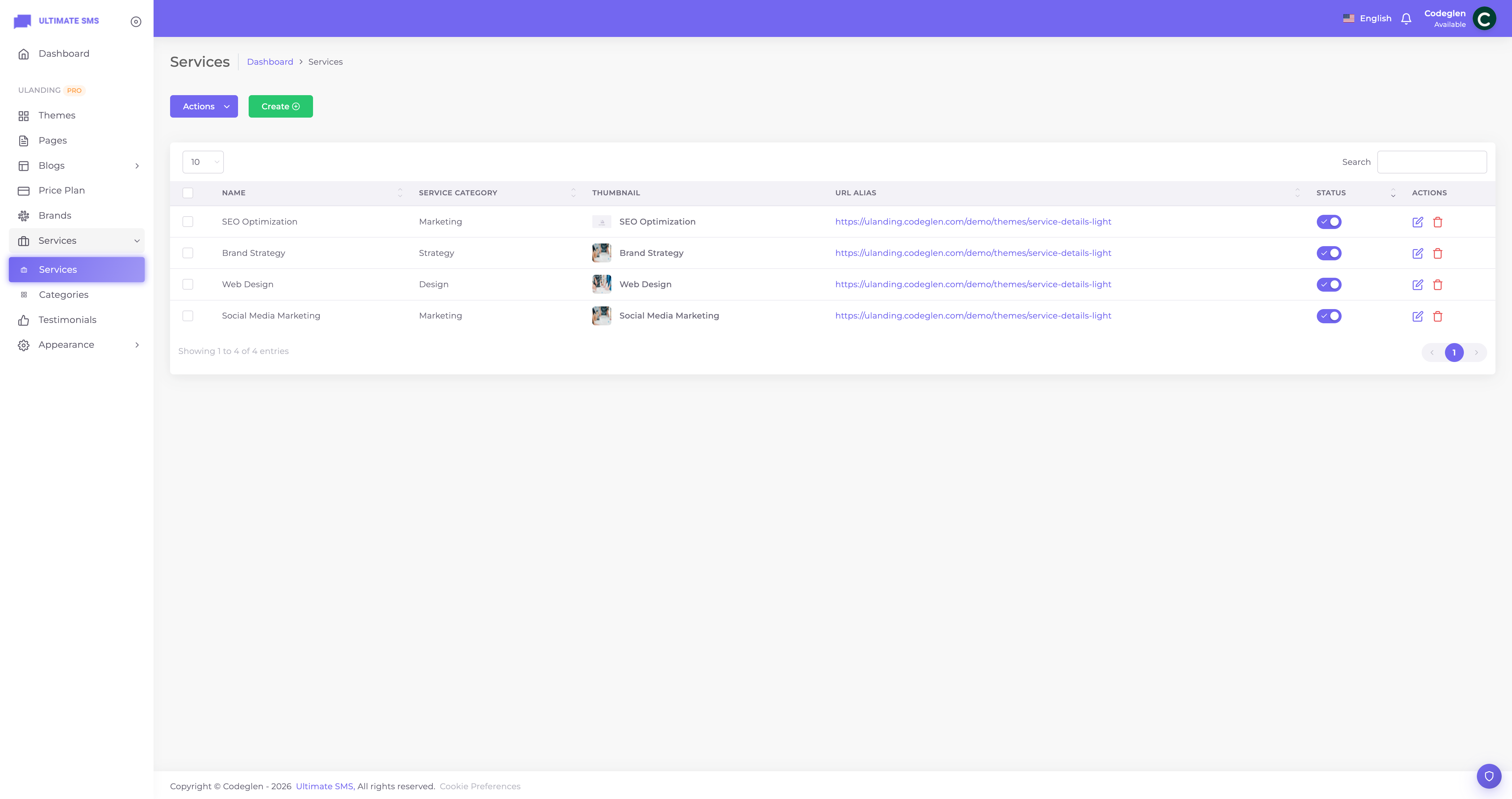
Screenshot: A typical uLanding list screen (e.g. Services) with search, status toggles and bulk actions
Forms
- Forms are split into tabs (e.g. General, Content, Media, SEO) for longer items.
- Required fields are marked.
- Image fields open a media picker; you can upload or choose existing images.
- Rich text fields use a visual editor (bold, lists, links).
- A Status / Published switch decides whether the item is live.
Status words explained
| Word | Meaning |
|---|---|
| Published / Active / Visible | Live and visible to visitors |
| Draft / Inactive / Hidden | Saved but hidden from visitors |
Tip You can safely create content as a Draft, perfect it, and publish only when ready.
Demo mode
If your installation is running in demo mode (a public sandbox), some actions that change data are disabled to protect the demo. On your own licensed installation, everything is fully editable.
Continue to Themes.