Demo Importer
The Demo Importer fills your site with a complete, realistic example website in one click. Instead of staring at a blank page, you get pages, services, blog posts, pricing, testimonials, brand logos, menus, a footer and images — all ready to edit.
Tip Importing the demo is the single biggest time‑saver in uLanding. We strongly recommend it for every new site.
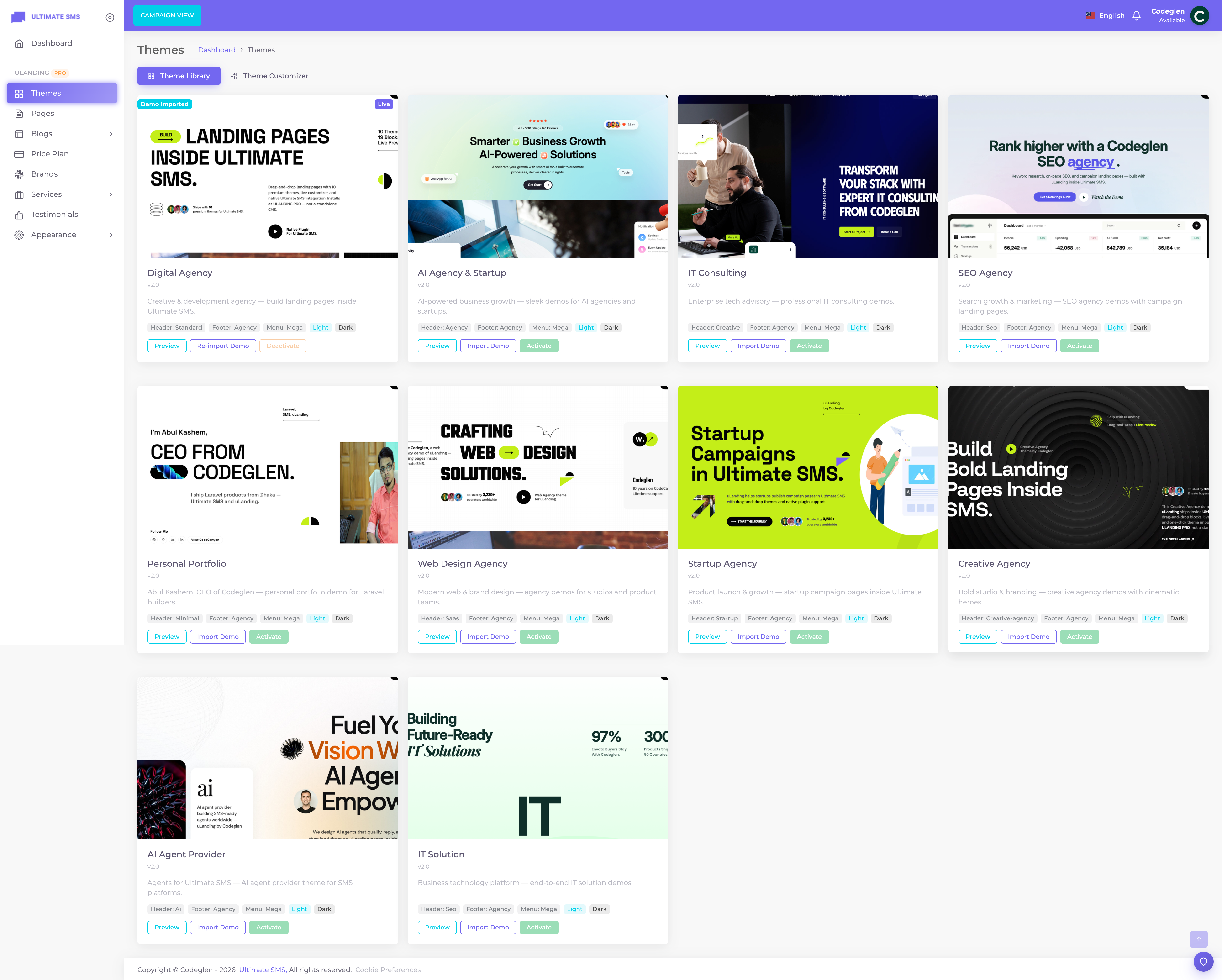
Screenshot: Theme Library → Import Demo button on a theme card
What gets imported
When you import a theme's demo, uLanding automatically configures:
| Item | What you get |
|---|---|
| Theme activation | The selected theme becomes active |
| Theme Customizer | Colors, fonts, branding placeholders, button/radius defaults |
| Required settings | Header type, footer type, menu style, theme mode |
| Pages | Home, About, Services, Pricing, Blog, Contact, Privacy Policy, Terms, 404 (varies by theme) |
| Homepage | Full Page Builder layout wired as the site home |
| Menus | Main (header) menu and footer menu structure |
| Header | Logo placeholders, CTA, sticky/style defaults |
| Footer | Footer layout, copyright, widgets |
| Widgets | Footer columns + blog sidebar widgets |
| Images | Demo media copied into storage |
| Blogs | Sample posts, categories, and tags |
| Brands | Client / partner logos |
| Services | Service items (often with detail pages) |
| Price plans | Example pricing cards |
| Testimonials | Social-proof quotes |
| Off‑canvas | Configured slide‑in panel where the theme uses it |
Each theme imports content tailored to its industry — for example, the AI Agency demo talks about automation and machine learning, while the SEO Agency demo talks about rankings and link building.
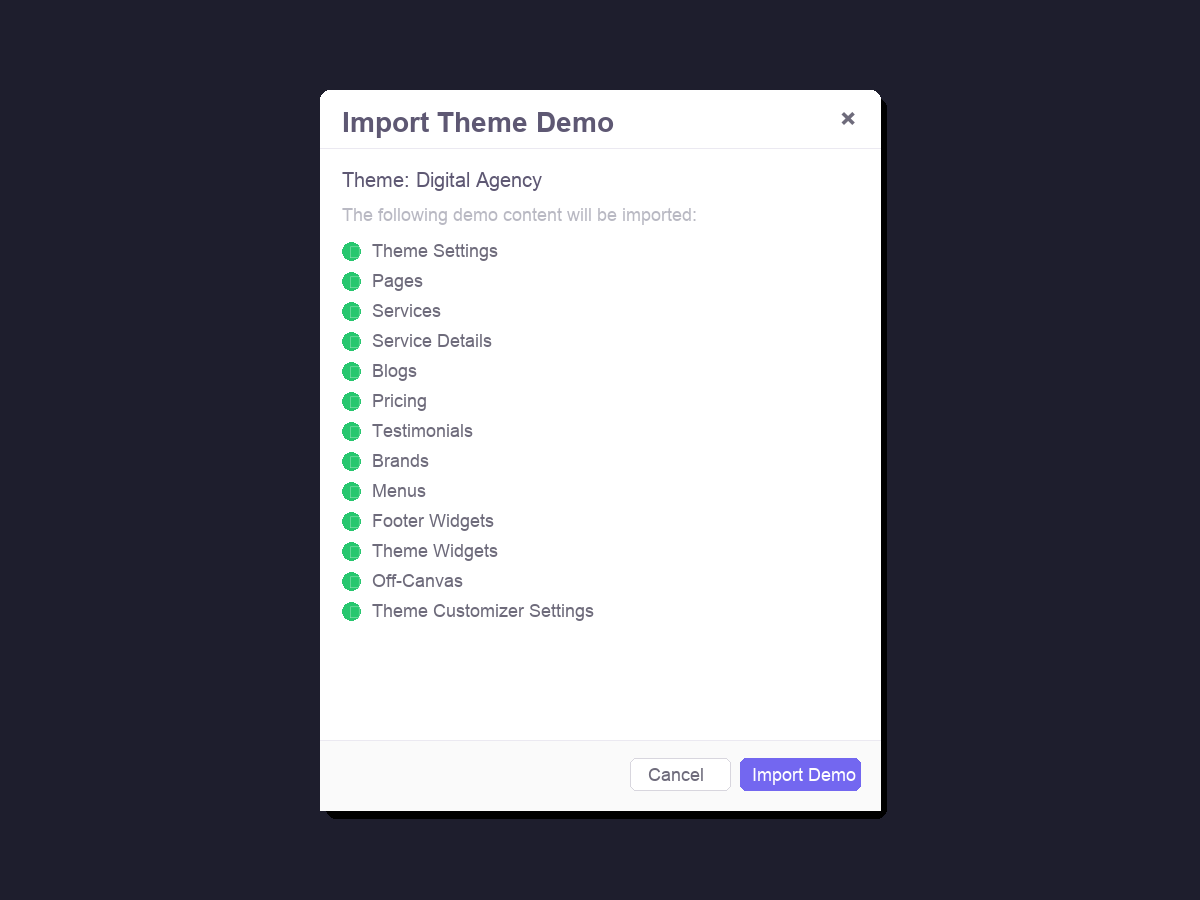
Screenshot: Import Demo confirmation window listing all imported items
How to import a demo
- Go to Themes.
- Find the theme you want and click Import Demo.
- A confirmation window lists everything that will be imported.
- Click Import.
- Wait a few moments while uLanding builds your site.
When it finishes:
- The theme is activated automatically.
- Your homepage is set to the imported Home page.
- Your default menus are assigned.
- Your site is ready to view.
Note Importing a demo also activates that theme. You don't need to activate it separately.
How long does it take?
Usually under a minute. If your server is slow or max_execution_time is low, it can take longer. If it times out, ask your administrator to raise max_execution_time and memory_limit (see Requirements).
Re‑importing (updating the demo)
If you've already imported a demo, the button changes to Re‑import Demo. Re‑importing:
- Updates demo items that already exist (matched by name/title).
- Replaces the footer widgets and menu items completely.
- Re‑inserts the home page's builder sections.
Warning Re‑importing will overwrite changes you made to demo items that share the same name. If you've heavily edited the demo content, re‑importing may undo your work. Re‑import mainly when you're starting fresh or switching themes.
Switching themes with demo content
If you import Theme A's demo and later import Theme B's demo:
- Theme B is activated.
- Theme B's demo content is imported (updating matching items).
- Old content from Theme A that doesn't match is left in place (it isn't deleted).
Tip For the cleanest result, decide on your theme before building a lot of custom content. Switching themes after heavy customization is possible but means more cleanup.
Resetting the demo
There is a reset function that clears the "demo imported" marker for a theme (so the button shows "Import Demo" again).
Important Reset only clears the marker — it does not delete your imported pages, services, posts, widgets or images. To remove content, delete it from the relevant admin screens (Pages, Services, Blogs, etc.).
Do I have to import the demo?
No. If you prefer to build everything from scratch:
- Activate a theme.
- Go to Pages and create your pages.
- Build each page with the Page Builder.
- Add your Services, Blog, Pricing, etc.
- Build your footer and menus.
But for most people, importing the demo and editing it is far faster.
Troubleshooting the import
| Problem | Fix |
|---|---|
| Import button does nothing | Confirm uLanding is Active, you have manage themes permission, then retry |
| Import times out | Raise max_execution_time and memory_limit; try again |
| Images are missing after import | Run php artisan storage:link; check the storage folder is writable |
| "Theme not supported" error | The theme slug isn't one of the 10 built‑in themes |
| Demo imported but home page is blank | Clear caches: php artisan optimize:clear |
More fixes in Troubleshooting.
Continue to Theme Customizer.